Getting started
Signing in for the first time, finding your way around, and setting up your profile.
Signing in
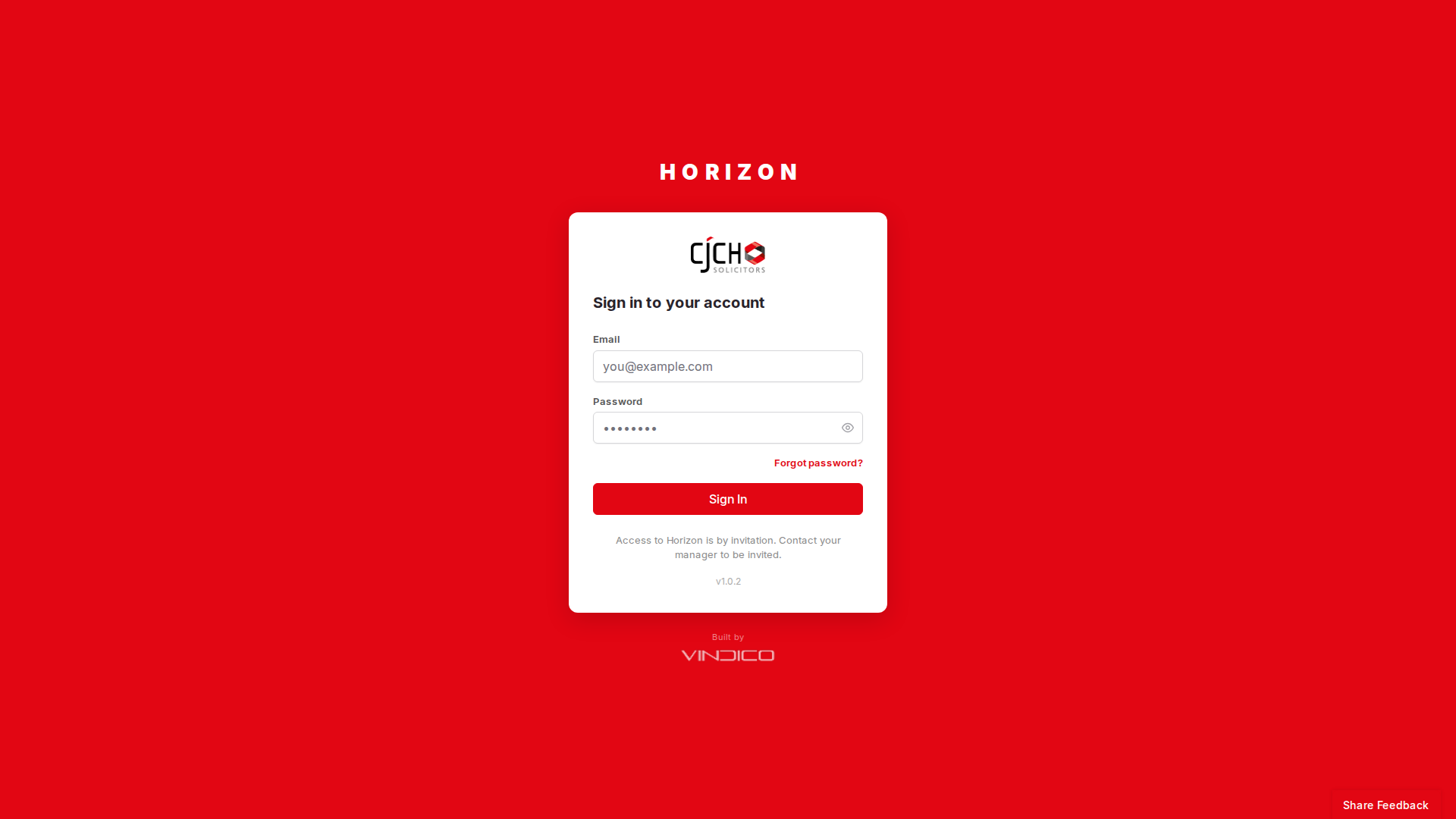
Open Horizon in your browser and sign in with your work email address and password.
Getting an account
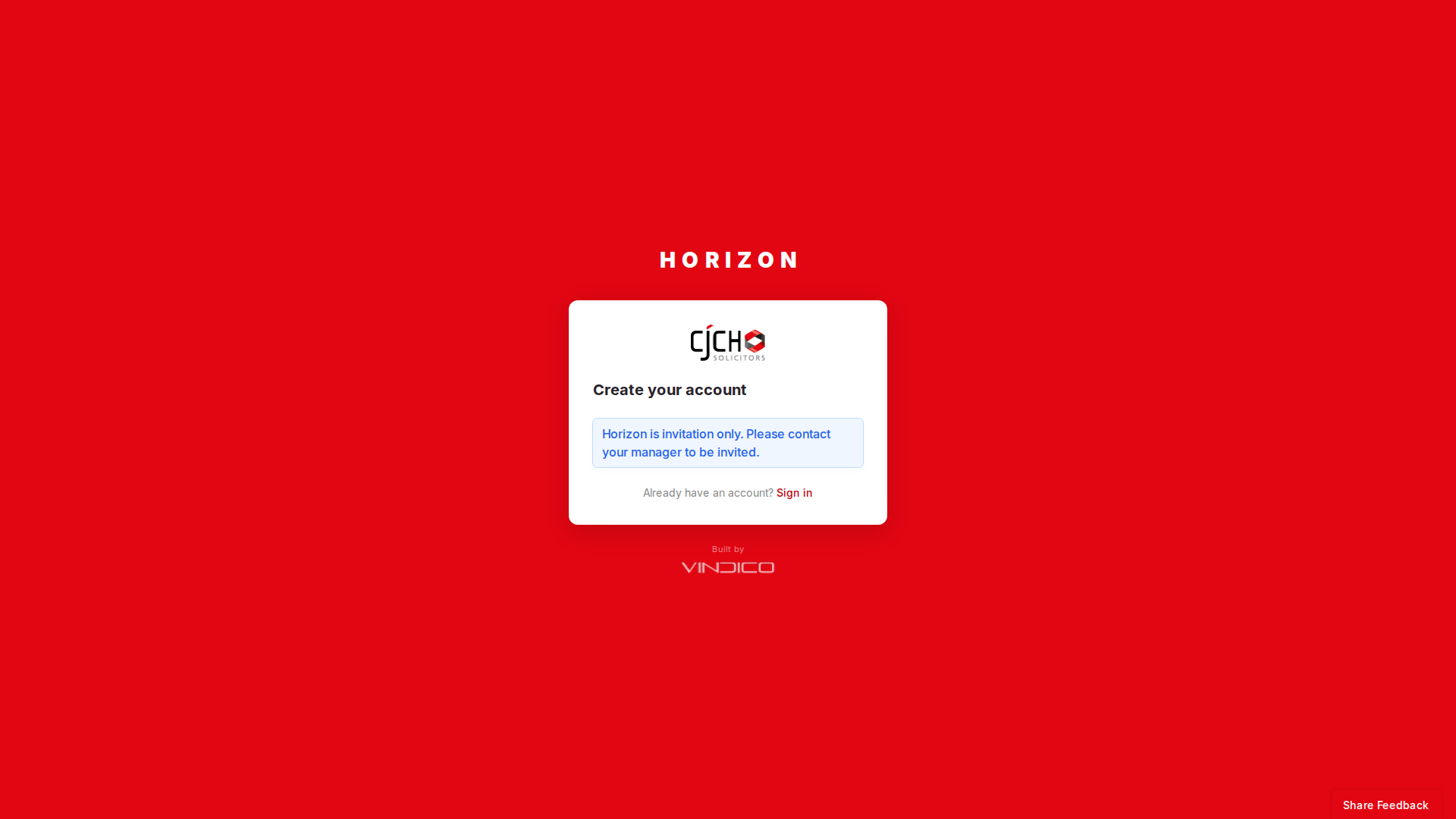
Horizon is invitation-only. An administrator sends you an email invitation; follow its link to set your password, with your name and email prefilled from the invite. There is no open sign-up: without a valid invitation link, the registration page asks you to contact your manager.
Forgotten password
Click Forgot password on the sign-in page and enter your email. Follow the link in the email you receive to set a new password. If no email arrives within a few minutes, check your junk folder, then ask an administrator.
Finding your way around
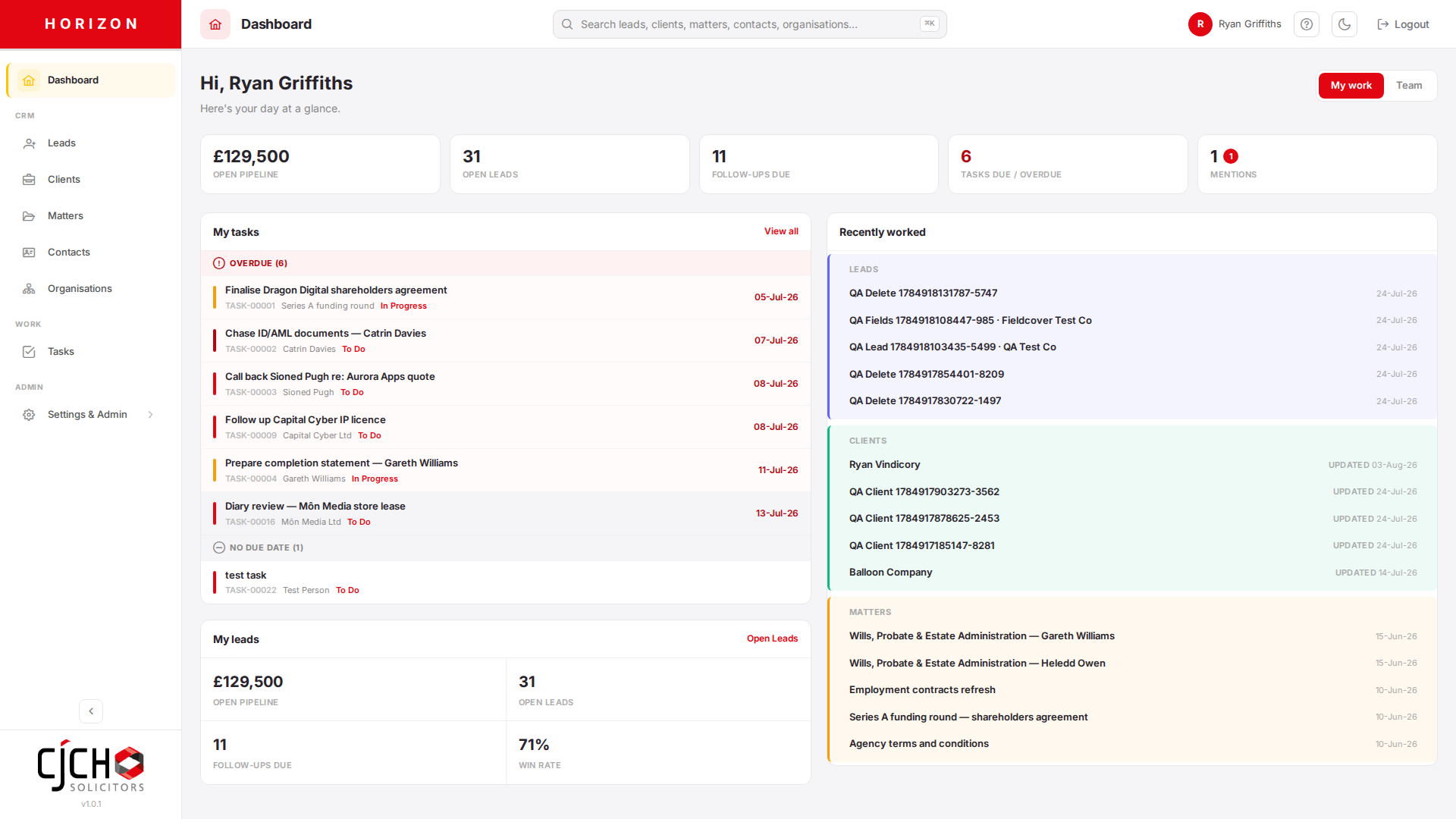
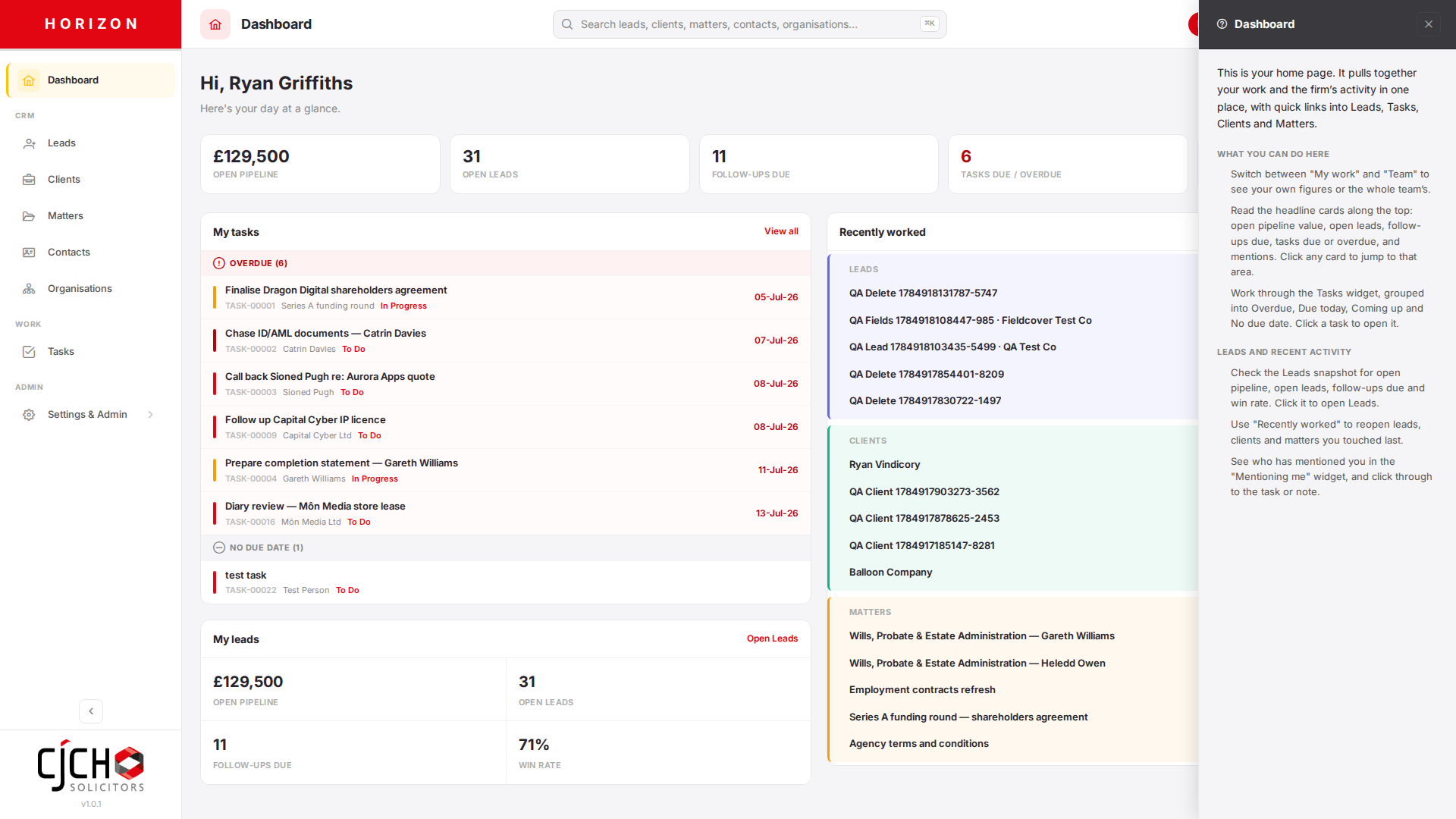
Every page shares the same frame:
- Sidebar (left). The main areas: Dashboard, then the CRM section (Leads, Clients, Matters, Contacts, Organisations), then Work (Tasks). Administrators also see a Settings & Admin section. The sidebar collapses to icons on small screens.
- Top bar. Global search, the theme toggle (light/dark), the help panel (question-mark icon), your name (click it to open your profile) and Logout.
- Help panel. The question-mark icon opens a written guide for the page you are on. If a page ever feels unfamiliar, start there. It also links to this full user guide, as does the sidebar.
- Update banner. When a new version of Horizon ships, a banner appears with the release notes. You can read what changed on the Releases page at any time.
Your profile
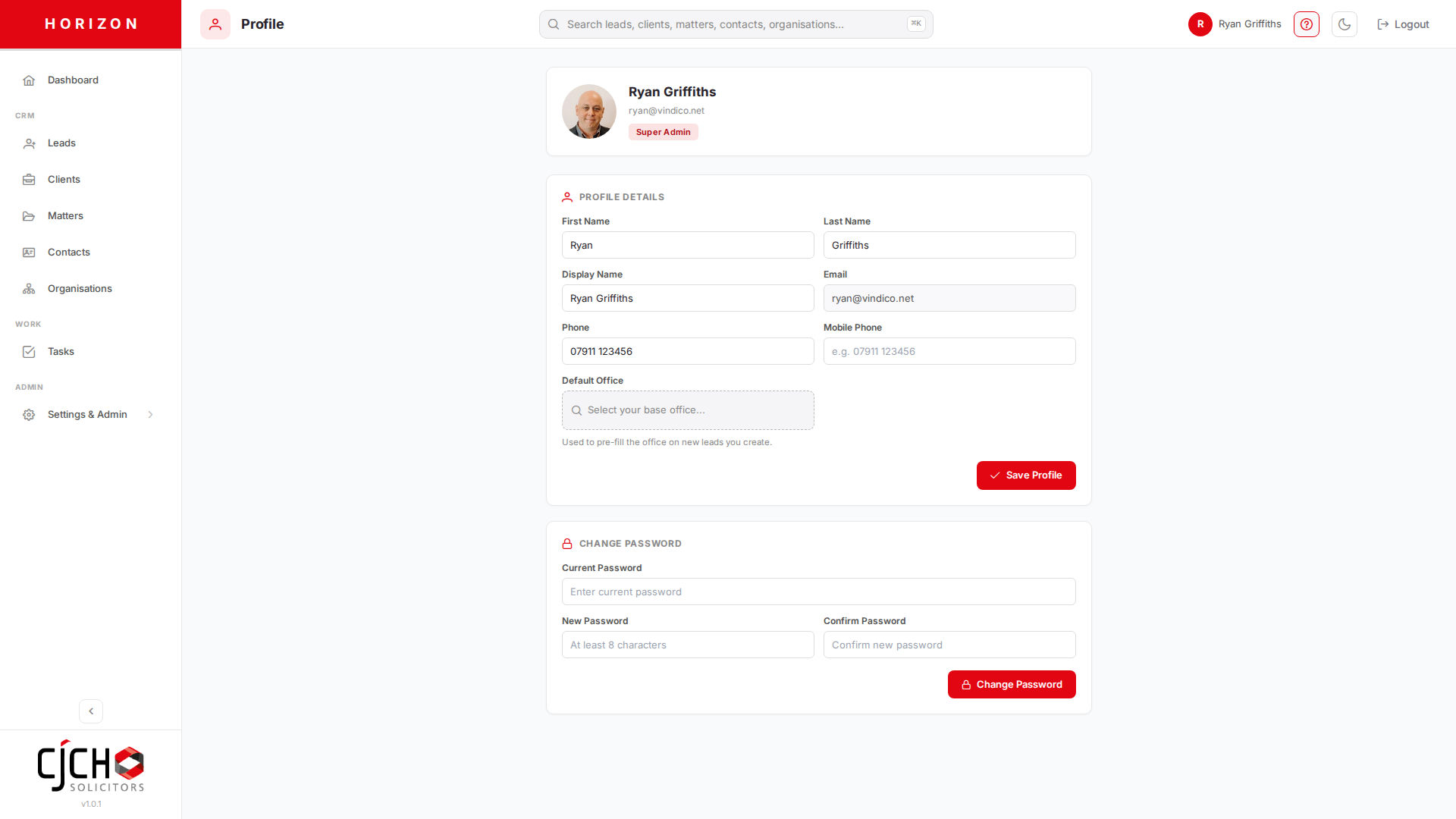
Click your name in the top bar to open your profile. Here you can:
- Upload a profile photo and edit your name, display name, phone and mobile, then click Save Profile.
- Set your default office, used to pre-fill office pickers.
- Change your password under Change Password.
Your email address and role are shown but cannot be changed here; ask an administrator if either is wrong.
Run sheet A1 · First sign-in & profile setup walks through this as a checklist.